
Scan History
View every scan conducted across your DNS infrastructure with change summaries and timing.
The Scan History page shows every scan that has been conducted across your DNS infrastructure. Each scan is recorded with its type, target, duration, change summary, and who initiated it.
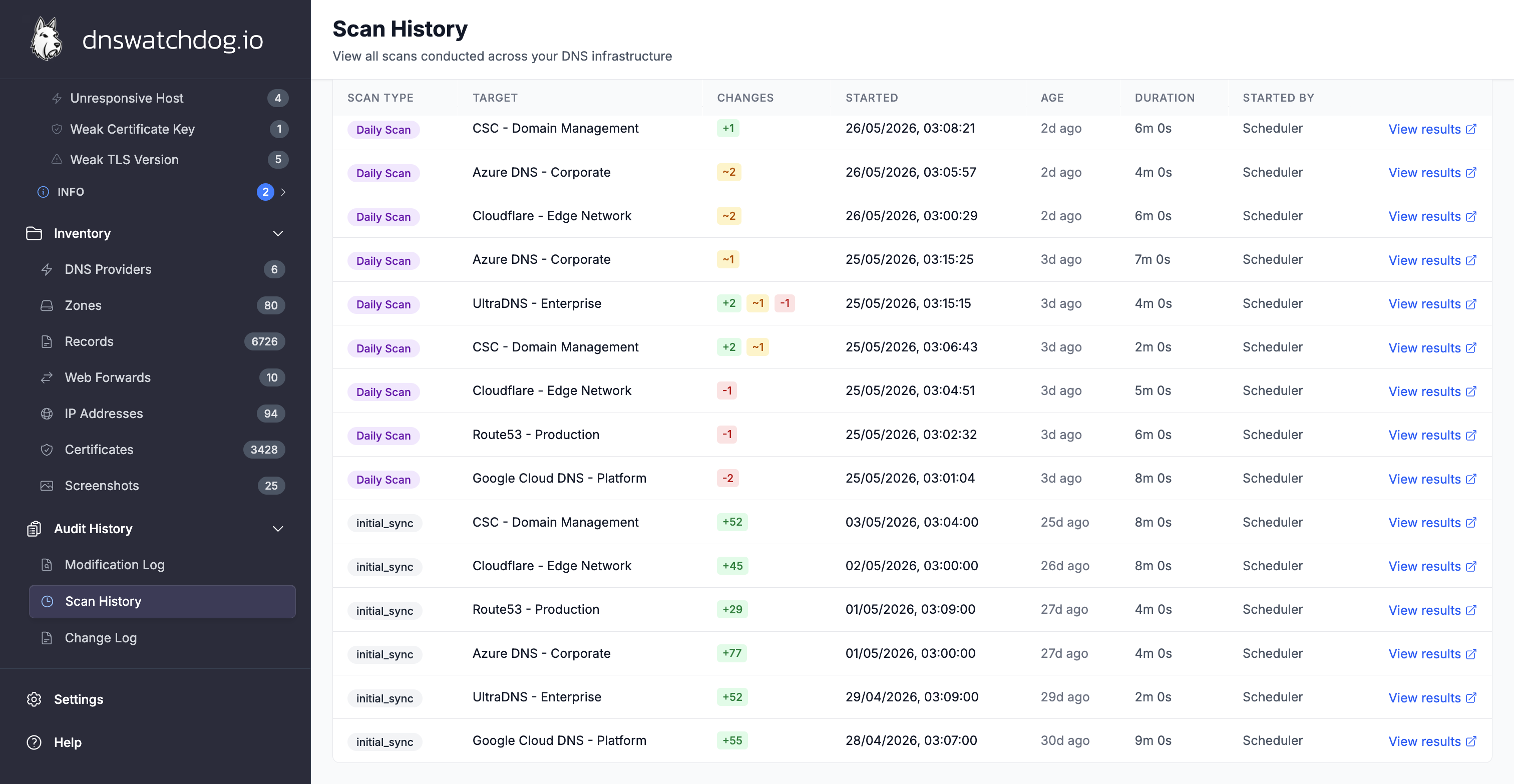
Scan types
DNS Watchdog runs three types of scans:
| Scan Type | Trigger | Target |
|---|---|---|
| Initial Sync | Runs automatically when you first connect a provider | Single provider — discovers all zones and records |
| Daily Scan | Automated, runs every day at 02:00 UTC | All providers — checks for changes across your entire DNS estate |
| Provider Resync | Manually triggered by a user | Single provider — re-syncs all zones and records |
Each scan type is shown with a colour-coded badge for quick identification.
What's shown
For each scan, the table displays:
| Column | Description |
|---|---|
| Scan Type | Colour-coded badge (Initial Sync, Daily Scan, Provider Resync) |
| Provider | Target provider name, or "All Providers" for daily scans |
| Changes | Summary badges showing records added (+), changed (~), and removed (-) |
| Started | Start time and relative age (e.g. "2 hours ago") |
| Duration | How long the scan took to complete |
| Initiated By | "Scheduler" for automated scans, or the user's email for manual resyncs |
Summary cards
Summary cards at the top of the page show:
- Running — number of scans currently in progress
- Total — total number of scans recorded
Filtering
You can filter scans by status:
- In Progress — scans that are currently running
- Completed — scans that have finished
The page auto-refreshes every 15 seconds so you can monitor running scans without manually reloading.
Viewing scan results
Each scan row includes a View results link that takes you directly to the Change Log filtered to that specific scan. This lets you see exactly what changed during that scan — which records were added, modified, or removed, and which issues were detected or resolved.
This deep linking makes it easy to investigate what happened during a particular scan without manually setting up filters.