
Dashboard
Your DNS security overview — DNS health grade and score, top issue types by score impact, workflow stats, and recent changes at a glance.
The Dashboard is the first page you see after signing in. It provides a high-level overview of your DNS security posture and recent activity across all connected providers.
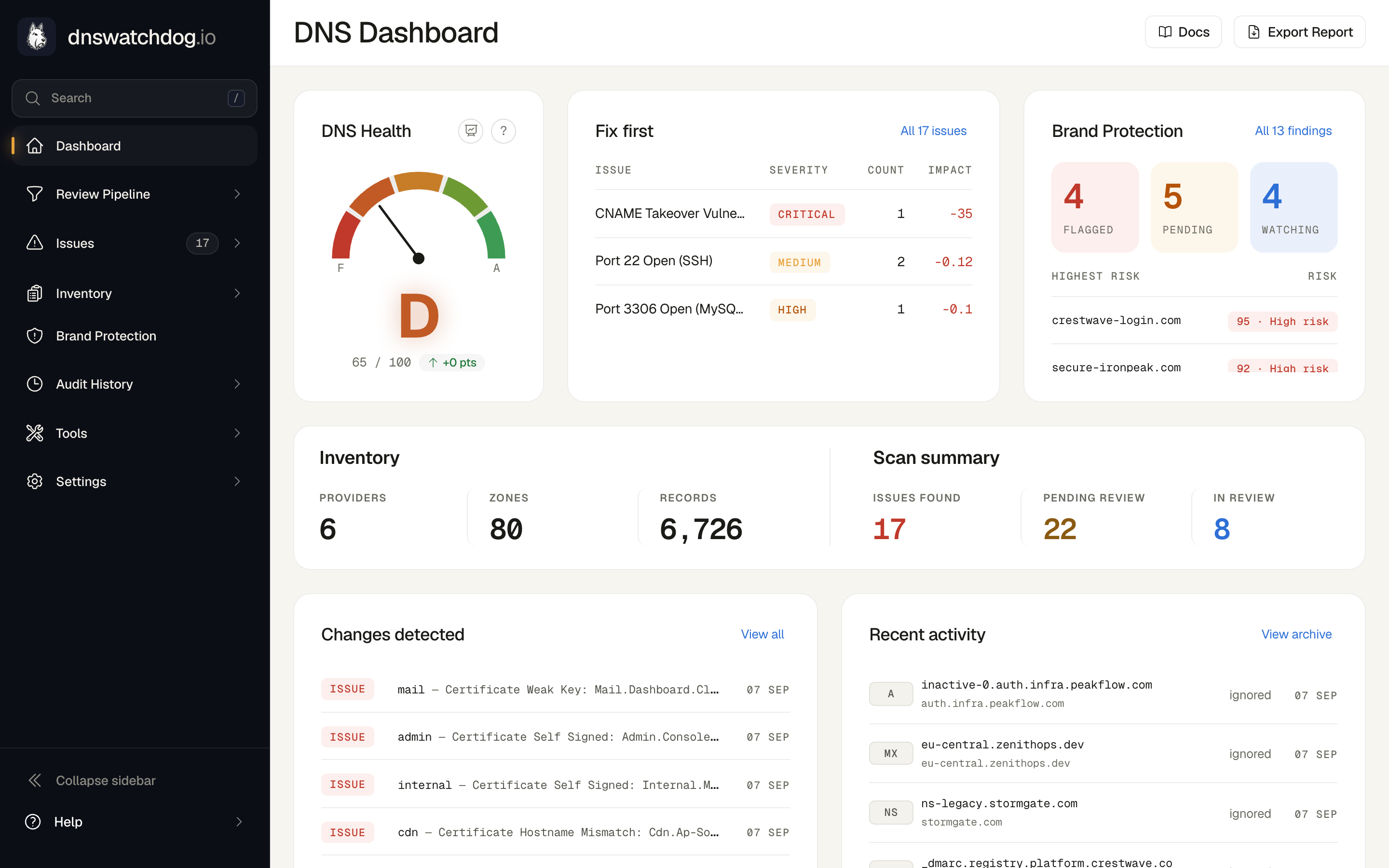
DNS health grade
The DNS Health Grade card is an at-a-glance measure of your DNS security posture, shown as a single letter grade (A–F) and a 0–100 score. The gauge needle sits within the band for your current grade, colour-coded from green (A) through amber to red (F).
- Score — your current DNS health score, from 0 to 100
- Grade — the letter band your score falls into (A is best, F is worst)
- Since last scan — how your score has moved compared with the previous scan
- How it's calculated — opens a step-by-step breakdown showing the points each open issue deducts at your estate size, and the grade bands
The score is a point-in-time snapshot recomputed on every scan, so it always reflects your latest set of issues.
How the score is calculated
Your score starts at 100, and every open issue deducts points from it. The deductions simply add up — the score impacts shown on the dashboard sum to exactly the points removed, with no caps or floors in between.
- Every non-critical issue deducts its severity weight (high 7, medium 4, low 1, informational 0) × 100 ÷ your total DNS records. Spreading the weight across the estate means a large, mostly-healthy estate isn't punished for a proportionate number of minor findings. Estates under 50 records are scored as if they held 50, so a single finding on a small estate is a deduction, not an automatic fail.
- Every critical issue deducts a flat 35 points — exactly the same at any estate size, because an attacker only needs the one record. One open critical therefore means a score of at most 65 (a D at best), two mean an F (30 at best), and three or more mean 0.
- Your score is 100 minus the sum of all deductions (never below 0). The grade bands are A 90+, B 80+, C 70+, D 60+, and F below 60.
Top issue types
The Top Issue Types card ranks the issue types dragging your score down the most, so you know where to focus first. It shows as many rows as fit alongside the DNS Health Grade gauge, and the top 10 on smaller screens.
- Score Impact — how many points that issue type is costing your score
- Issue — the issue type (e.g. Missing DKIM Record, Certificate Hostname Mismatch)
- Severity — the severity level of that issue type
Selecting a row opens the Issues page filtered to that issue type, and View All takes you to the full Issues list.
Brand Protection
The Brand Protection card sits beside Top Issue Types and shows the look-alike domains found trading on your brands, so a copycat site is as visible as a DNS issue.
- Flagged, Pending and Watching — how many findings are in each triage state. A tile takes its status colour once its count is non-zero, and selecting it opens the Brand Protection list filtered to that state.
- Highest risk — the five findings with the highest assessed risk, each with its risk score and classification. Selecting a row opens that finding on the Brand Protection page.
All N findings takes you to the full Brand Protection list. An account with no brands yet is pointed at the Brands page instead, and one with brands and nothing found sees an all-clear. See Brand Protection for how findings are discovered, assessed and triaged, and Review Pipeline for how they appear beside your DNS issues.
Workflow overview
The Workflow Overview cards summarise your DNS estate and review pipeline. Each card links straight to the matching page:
- Providers — connected DNS providers
- Zones — zones discovered across all providers
- Records — DNS records synced
- Issues — total open security issues
- Pending Review — issues awaiting review
- In Review — issues currently being reviewed
- Ignored — issues you've chosen to ignore
Recent changes
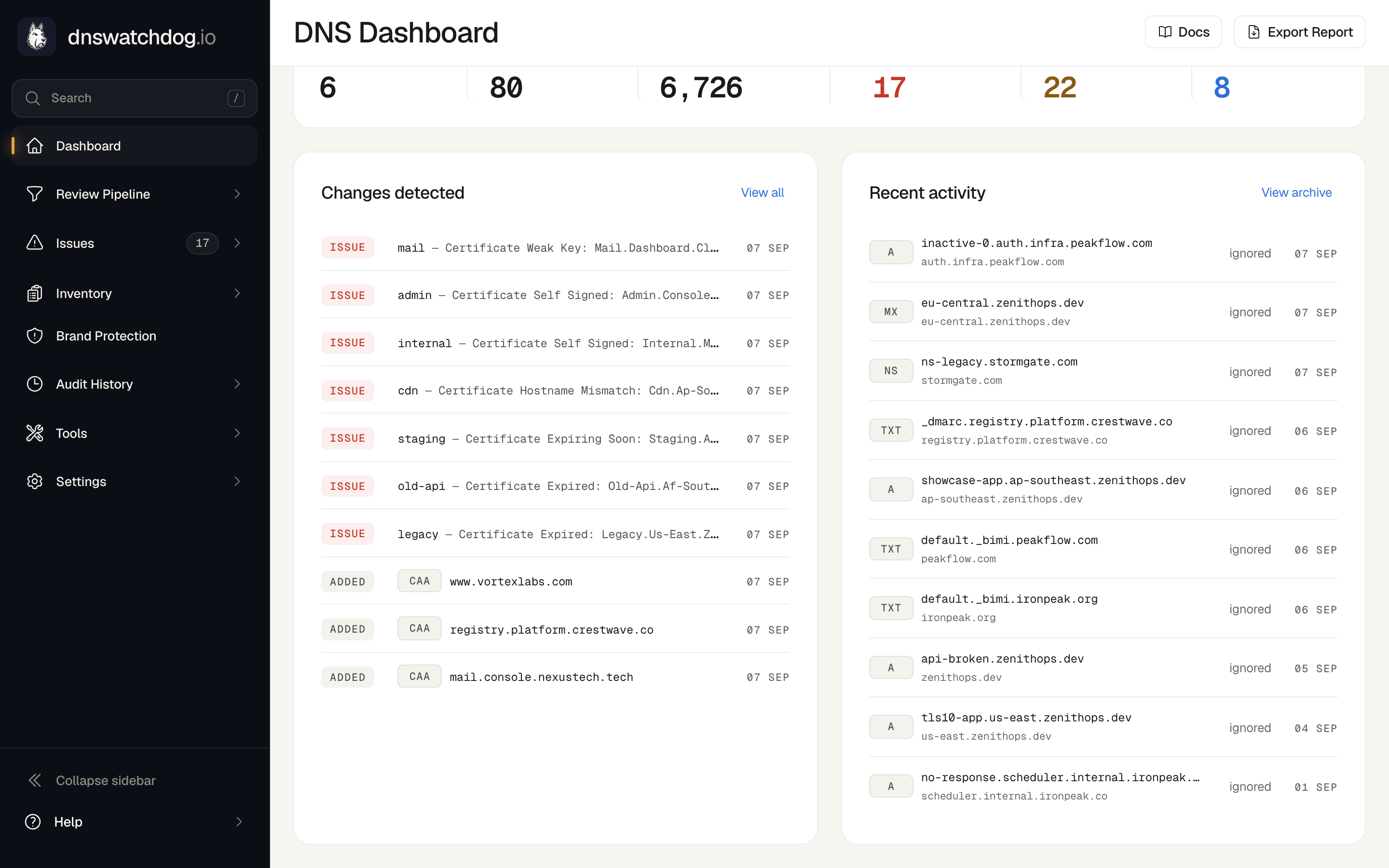
The Changes Detected panel shows the latest DNS changes found during scans — new records, modified values, deleted records, and new or resolved issues. Each entry links to the full changelog for that scan, and View All opens the complete change log.
Alerts
When something needs attention, the dashboard displays alert banners:
- No providers configured — prompts you to connect your first DNS provider
- Provider in error state — a provider's credentials have expired or are invalid
- Provider syncing — a provider sync is currently in progress
Inventory
Exploring your DNS inventory — providers, zones, records, certificates, IP addresses, web forwards, and screenshots.
Providers
View and manage your connected DNS providers — see connection status, zone counts, sync history, and credential health for Route 53, Cloudflare, CSC, Azure DNS, Google Cloud DNS, and UltraDNS.