
Records
View and manage all DNS records synced from your providers — filter by type, zone, or status, review scan results, archive stale records, and investigate security issues.
Records are the core of the DNS inventory. Each record represents an individual DNS entry (A, AAAA, CNAME, MX, TXT, NS, SRV, CAA, etc.) within a zone. Records are the primary target for security scanning — they are scanned for open ports, HTTP behaviour, SSL certificates, and subdomain takeover risks.
Records also carry ISP geolocation data for their resolved IP addresses and can have screenshots captured for visual verification of web endpoints.
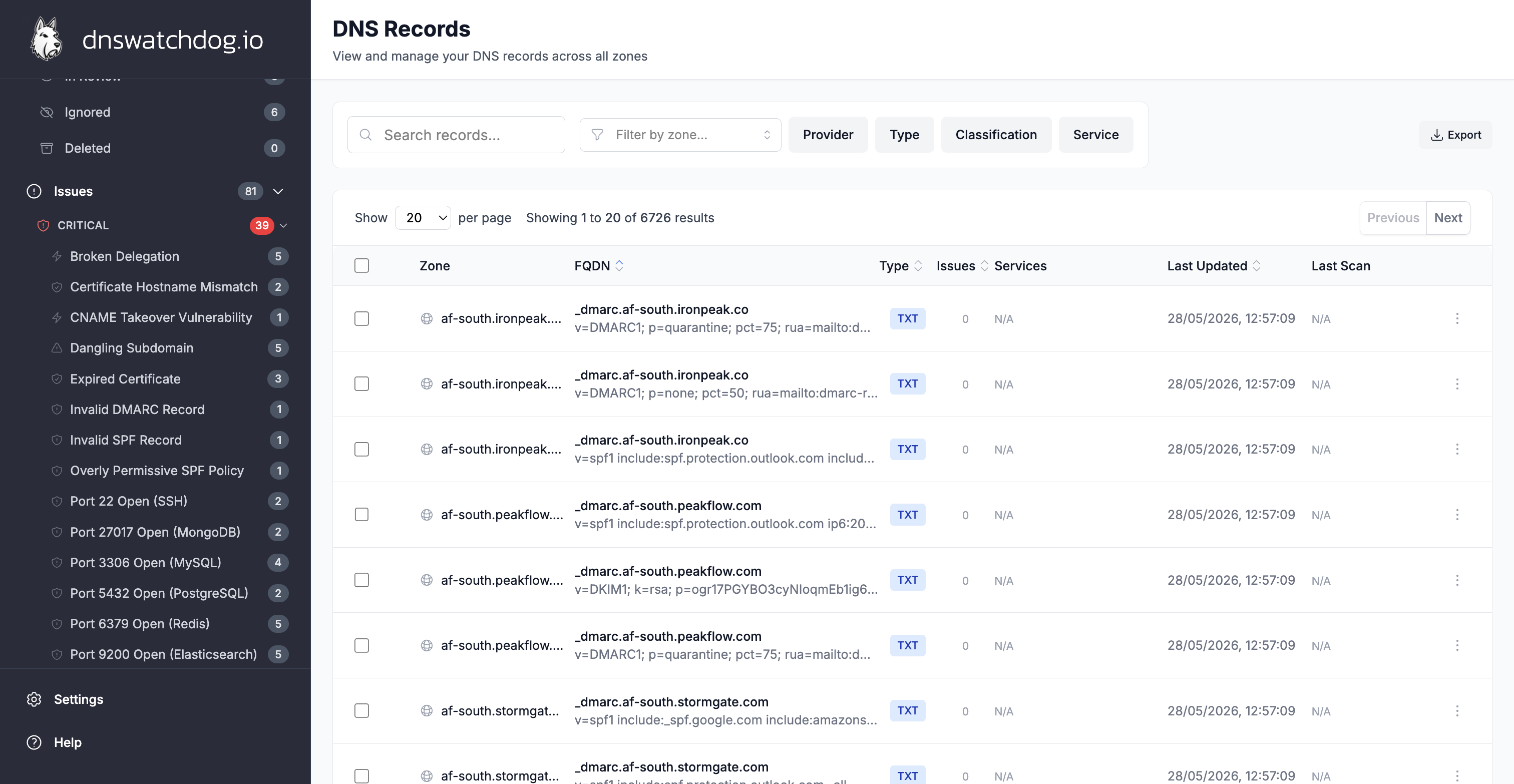
Record classifications
DNS Watchdog automatically classifies certain records:
- Verification records — TXT records used for domain ownership verification (e.g. Google, Microsoft)
- DKIM records — TXT records containing DKIM public keys
- SPF records — TXT records containing SPF policies
- DMARC records — TXT records containing DMARC policies
- Provider nameservers — NS records pointing to the hosting provider's nameservers
- DNS redirects — records that implement HTTP redirects via the DNS provider
Key fields
| Field | Description |
|---|---|
| Name | The record name (e.g. www, @, mail) |
| FQDN | Fully qualified domain name (e.g. www.example.com) |
| Record Type | DNS record type: A, AAAA, CNAME, MX, TXT, NS, SRV, CAA, etc. |
| Value | The record value — IP address, hostname, or text content |
| TTL | Time-to-live in seconds |
| Priority / Weight / Port | Additional fields for MX and SRV records |
| Classification | Auto-detected classification (see list above) |
| Read-Only | Whether the record can be modified through DNS Watchdog |
Scan results
Each record is scanned automatically during daily scans. The following fields are populated from scan results:
| Field | Description |
|---|---|
| Port Scan Status | pending, completed, or failed |
| Open Ports | List of open TCP ports detected on the resolved IP |
| Services Detected | Services identified on open ports (e.g. nginx, Apache, OpenSSH) |
| HTTP Status Code | Response code from the HTTP probe (e.g. 200, 301, 404) |
| HTTP Final URL | The final URL after following all redirects |
| HTTP Redirect Chain | Full chain of redirects followed during the HTTP probe |
| Certificate Scan Status | Whether SSL certificate analysis has been performed |
| Certificate | Link to the associated certificate if the record serves HTTPS |
ISP and geolocation
For A and AAAA records, DNS Watchdog resolves the IP address and performs an ISP lookup to provide network context:
| Field | Description |
|---|---|
| Resolved IP | The IP address the record resolves to |
| ISP | Internet Service Provider name (e.g. "Amazon.com, Inc.", "Cloudflare, Inc.") |
| ISP Organisation | Organisation name registered with the ISP — may differ from the ISP name |
| ISP AS Number | Autonomous System number identifying the network (e.g. AS16509 for Amazon) |
| ISP Country | Country where the IP is geolocated (e.g. "United States", "Germany") |
| ISP Region | Region or state within the country (e.g. "Virginia", "Bavaria") |
| ISP City | City where the IP is geolocated (e.g. "Ashburn", "Frankfurt") |
This data helps you understand where your infrastructure is hosted and identify unexpected geographic distribution.
Screenshots
For records that respond on port 80 or 443, DNS Watchdog captures a screenshot of the web page:
| Field | Description |
|---|---|
| Screenshot | Full-size screenshot of the web page served at this record's FQDN |
| Thumbnail | Smaller preview image used in list views |
| Canonical Record | When multiple records resolve to the same content, screenshots are deduplicated — this links to the canonical record |
See Screenshots for more details on how screenshots are captured and analysed.
Associated issues
Records can have issues from several categories. Here are the most common:
Port exposure
Open ports on the resolved IP address are flagged based on the service type:
- Critical — SSH, Telnet, FTP, MySQL, PostgreSQL, MongoDB, Redis, Elasticsearch, Docker, Kubernetes API, SMB, MS-RPC, and more
- Warning — SMTP, DNS, LDAP, RDP
HTTP issues
| Issue | Severity |
|---|---|
| HTTP 404 Not Found | Warning |
| HTTP 4xx Client Error | Warning |
| HTTP 5xx Server Error | Warning |
| HTTP Connection Error | Warning |
| Authentication Required | Warning |
| Weak TLS Version | Warning |
| No HTTPS Redirect | Warning |
DNS issues
| Issue | Severity |
|---|---|
| Dangling Subdomain | Critical |
| Broken Delegation | Critical |
| Delegated Subdomain | Warning |
Email security
| Issue | Severity |
|---|---|
| Invalid SPF Record | Critical |
| SPF Too Many Lookups | Critical |
| Overly Permissive SPF | Critical |
| Invalid DKIM Record | Critical |
| Invalid DMARC Record | Critical |
| Invalid MTA-STS Record | Critical |
| Invalid MX Record | Critical |
| SPF Deprecated PTR | Warning |
| SPF Missing Catch-All | Warning |
| DKIM Key Revoked | Warning |
Actions
- Archive — soft-delete a record (can be restored from the Archive page)
- Rescan — trigger a manual rescan of the record's ports, HTTP, and certificates
- Bulk delete — archive multiple records at once
- Bulk rescan — rescan multiple records at once
Common tasks
How do I find records for a specific zone?
Use the zone filter in the sidebar or filter controls to narrow the records list to a single zone. You can also navigate to the zone's detail page and view its records from there.
How do I identify stale or unused records?
Look for records with these indicators:
- HTTP 404 or connection errors — the target may no longer exist
- Inactive IP issues — the resolved IP has no open ports
- Dangling subdomain issues — the CNAME target no longer resolves
Sort by issue count to surface records with the most problems.
How do I archive a record?
Select one or more records using the checkboxes, then click Archive. The records are removed from your DNS provider and moved to the Archive page where they can be restored if needed. This requires a read-write provider connection.
How do I find records pointing to decommissioned infrastructure?
Filter by IP address or ISP to find records pointing to specific hosts. Records pointing to IPs with no open ports (flagged with the "Inactive IP" issue) are likely candidates for cleanup.
Zones
Browse all discovered DNS zones across your connected providers — view record counts, sync status, email security posture (SPF, DKIM, DMARC), and trigger re-discovery.
Certificates
Monitor SSL/TLS certificates across your DNS estate — track expiry dates, detect hostname mismatches, identify weak keys, and manage certificate lifecycle.