
Screenshots
Screenshot capture of web endpoints for visual verification.
DNS Watchdog captures screenshots of web endpoints associated with your DNS records so you can visually verify what's being served.
How it works
- Every record is port scanned for 44 common ports
- If the record responds on port 80 or 443, a screenshot is taken using the latest version of Chrome
Pages have up to 30 seconds to respond before a screenshot is taken.
Visual grouping with perceptual hashing
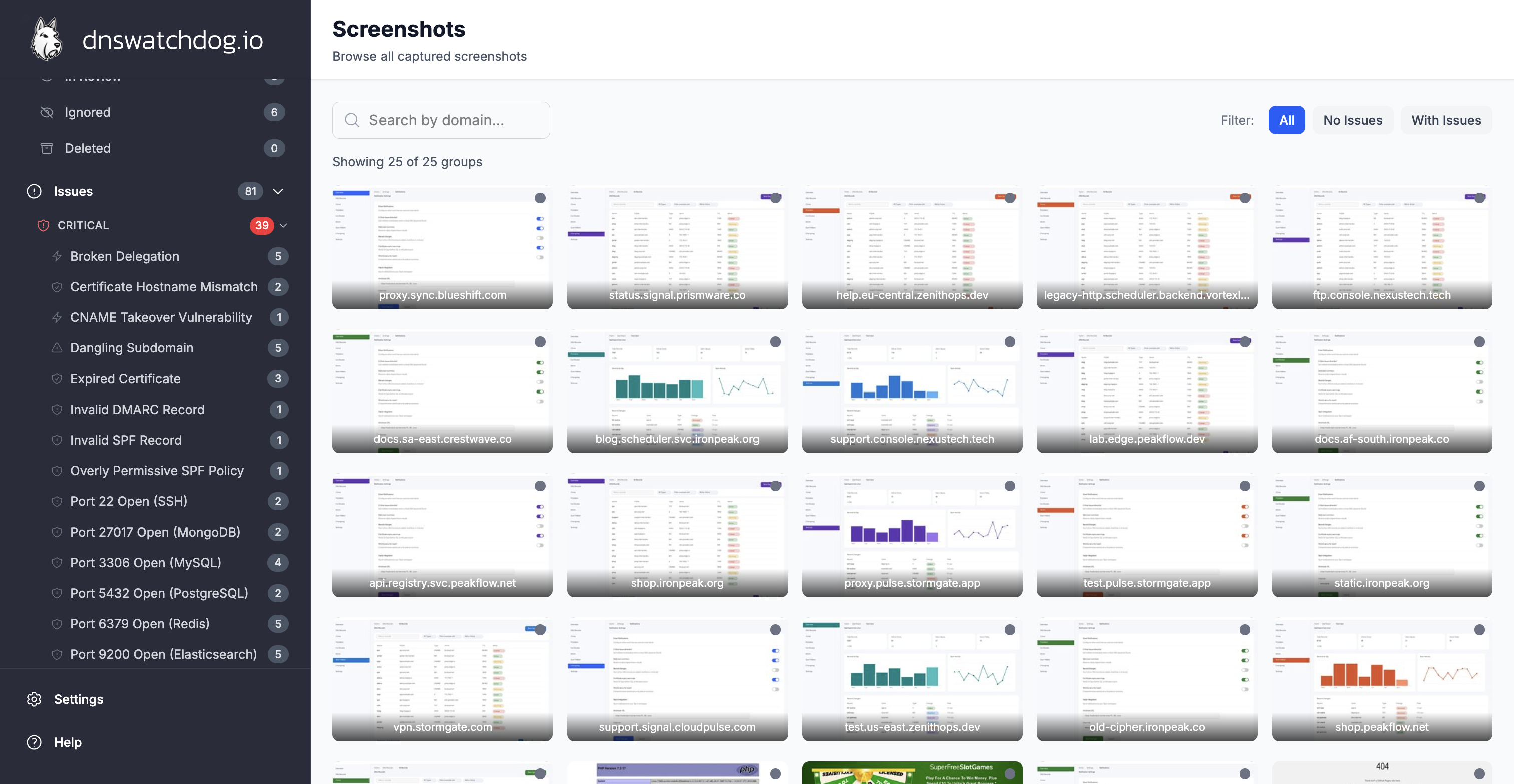
DNS Watchdog uses perceptual hashing (dHash) to detect visually identical screenshots across your inventory. When multiple records serve the same content — for example, several subdomains behind the same load balancer — their screenshots are grouped together rather than shown individually.
How it works
After each screenshot is captured, a 64-bit perceptual hash is computed from the image. This hash represents the visual structure of the page rather than its exact pixels, so minor rendering differences (anti-aliasing, font smoothing) don't prevent matching.
Screenshots with identical hashes are placed into the same group. The gallery displays one representative screenshot per group along with a count of how many records share that visual.
What this means in practice
- Reduced noise — if 20 subdomains all show the same default page, you see one entry with a "×20" badge instead of 20 identical thumbnails
- Faster review — focus on unique content rather than scrolling through duplicates
- Change detection — when a grouped record starts serving different content, it breaks out of its group and appears separately
Representative selection
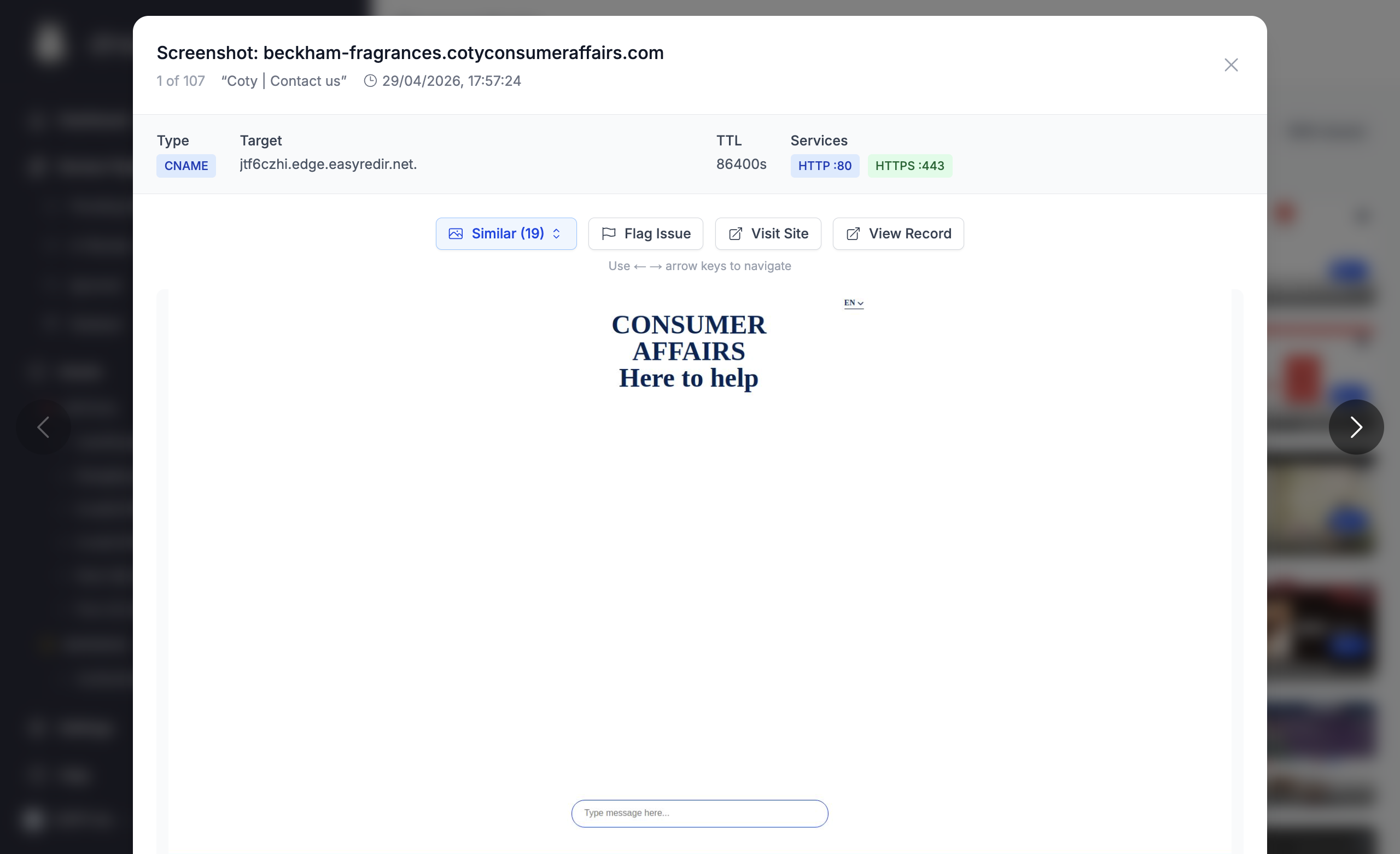
Each group shows the most recently captured screenshot as its representative. Clicking into a group reveals all member records sharing that visual.
What to look for
Screenshots help you spot problems such as:
- Parked or for-sale domain pages
- Default web server placeholder pages
- Error pages (403, 404, 500, etc.)
- Unexpected or suspicious content
- Login pages that may indicate exposed internal tools
If you notice any of these, you can create an issue from the screenshot to flag it for your team.
Viewing screenshots
Navigate to the Screenshots page from the Inventory section in the sidebar. Each screenshot shows the captured image and a link to the associated DNS record.
Creating an issue from a screenshot
If you notice content that shouldn't be there — such as a parked domain page, defacement, or unexpected content — you can manually create an issue from the screenshot:
- Open the screenshot detail view by clicking on a screenshot
- Click the Flag Issue button
- Enter a description of the problematic content (10–2000 characters)
- Select a severity level: Critical, Warning, or Info
- Click Submit
This creates a screenshot_content issue linked to the underlying DNS record. The issue appears on the Issues page alongside automatically detected issues, and can be triaged, ignored, or resolved using the same workflow.
If you flag the same record again, the existing issue is updated rather than creating a duplicate.